You can create forms in several ways.
Create a basic form
For basic forms, you can freely customize the questions and answer choices.
Mobile App
- Tap 'Home' at the bottom.
- Tap 'Form'.
- Tap
 .
. - Select a form type between 'Internal Use' or 'External Use'.
- Tap 'New Form'.
PC Web
- Click
 at the top.
 - Click 'Form'.
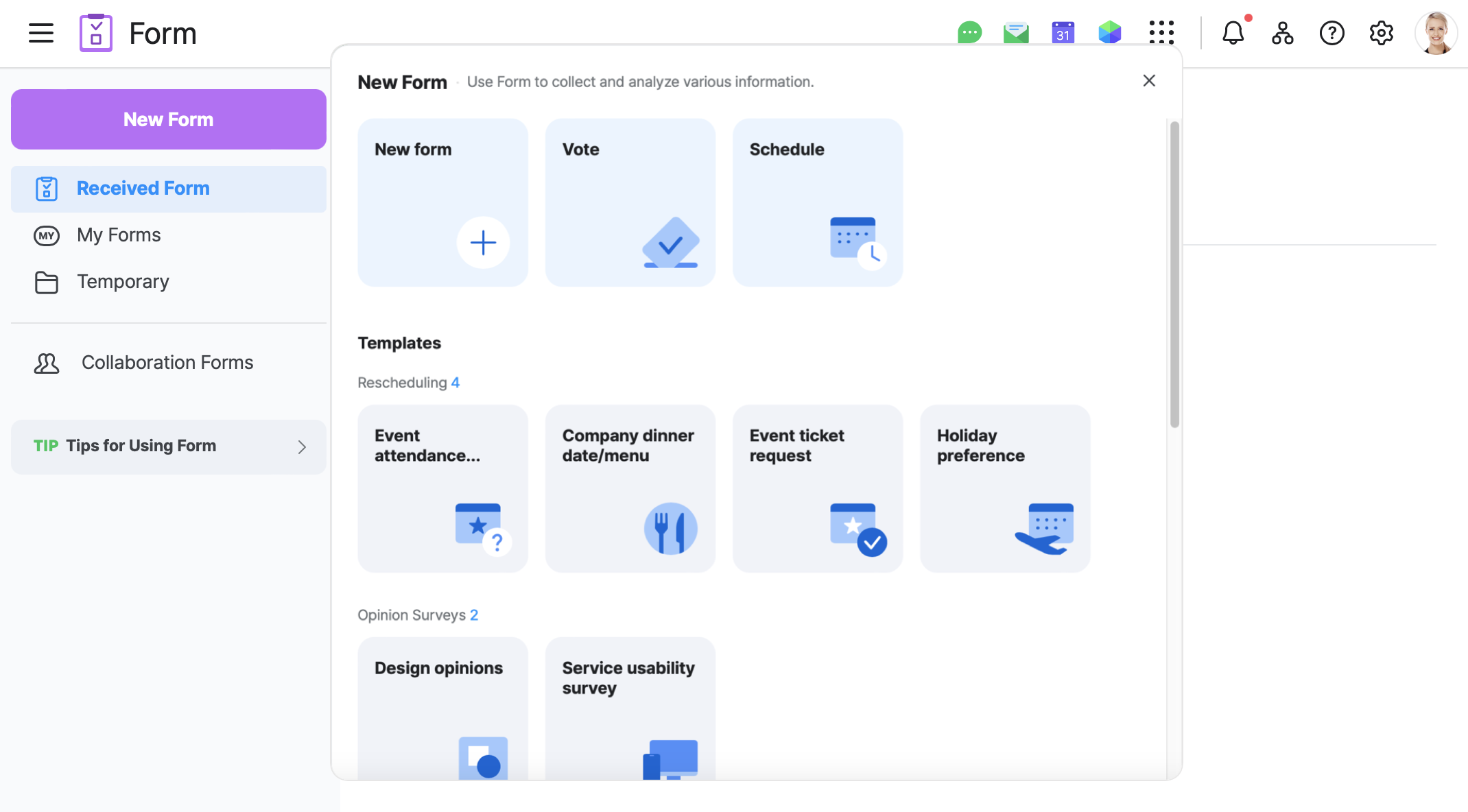
- Click 'New Form' in the left menu.
- Select a form type between 'Internal Use' or 'External Use'.
- Click 'New Form'.
Create a new form using a template
You can create templates for common survey patterns used in your work, such as employee check-ins or event participation surveys.
The administrator can manage form templates in Admin.
Mobile App
- Tap 'Home' at the bottom.
- Tap 'Form'.
- Tap .
- Select a form type between 'Internal Use' or 'External Use'.
- Select a form template.
PC Web
- Click at the top.
- Click 'Form'.
- Click 'New Form' in the left menu.
- Select a form type between 'Internal Use' or 'External Use'.
- Select a form template.
Create a new form by copying an existing form
To reuse the form you have created, you can copy the existing form to create a new form.
You can also apply the same response period and respondents as the existing form.
Mobile App
- Tap 'Home' at the bottom.
- Tap 'Form'.
- Tap
 .
. - Tap 'My Forms'.
- Tap
 of the form you want to reuse.
 - Tap 'Make a Copy'.
- Choose whether to set the respondents and response period to match those of the existing form.
- Tap 'OK'.
- Fill out the form, and then tap 'Complete' to create the form.
PC Web
- Click at the top.
- Click 'Form'.
- Click 'My Forms' in the left menu.
- Select the form you want to reuse, and then click 'Make a Copy'.
- Choose whether to set the respondents and response period to match those of the existing form.
- Click 'OK' to create a form.
Continue editing temporary forms
Incomplete forms are saved in Temporary.
You can continue to edit forms in Temporary.
Mobile App
- Tap 'Home' at the bottom.
- Tap 'Form'.
- Tap .
- Tap 'Drafts'.
- Tap the form you want to continue to edit.
- Fill out the form, and then tap 'Complete'.
PC Web
- Click at the top.
- Click 'Form'.
- Click 'Drafts' in the left menu.
- Click the form you want to continue to edit.
- Fill out the form, and then click 'Complete'.
Create a new form by copying a collaboration form
You can create a new form by copying a Collaboration form.
Mobile App
- Tap 'Home' at the bottom.
- Tap 'Form'.
- Tap .
- Tap 'Collaborative Forms'.
- Tap of the form you want to reuse.
- Tap 'Make a Copy'.
- Choose whether to set the respondents and response period to match those of the existing form.
- Tap 'OK'.
- Fill out the form, and then tap 'Complete'.
PC Web
- Click at the top.
- Click 'Form'.
- Click 'Collaborative Forms' in the left menu.
- Select the form you want to reuse, and then click 'Make a Copy'.
- Choose whether to set the respondents and response period to match those of the existing form.
- Click 'OK'.
Create a form for external users
You can survey LINE users or NAVER WORKS users from other companies added as external contacts.
You can only create forms for external users if the administrator has set your external connection to 'Use'.
Mobile App
- Tap 'Home' at the bottom.
- Tap 'Form'.
- Tap .
- Tap 'External Use'.
- Tap 'New Form'.
- Fill out the form, and then tap 'Complete'.
PC Web
- Click at the top.
- Click 'Form'.
- Click 'New Form' in the left menu.
- Click 'External Use'.
- Click 'New Form'.
- Fill out the form, and then click 'Complete'.
Create forms in a message room
You can create and send a simple form in the message room.
You can also create basic and template forms in 'Create Another Form'.