Sync
The term 'sync' refers to 1:1 folder sync.
With this feature, you can link 1 folder from NAVER WORKS Drive with 1 folder on your PC, and any changes made on the PC web, mobile app, or Drive Explorer are reflected in real time in your PC folder.
This allows you to update Drive Explorer tasks to the PC web or mobile app in real time.
Data restricted by Drive policies, such as files restricted by an administrator, malicious code, or special character folders, cannot be synchronized.
In the case of files restricted by an administrator, synchronization is not performed because an administrator has prohibited the synchronization of the extensions of specific files, so you must check with an administrator for detailed registration details.
Synchronization is also not supported in the following cases:
- If you specify a folder within a (third party's) virtual drive as the My Computer folder
Regulations on files
NAVER WORKS Drive restricts and regulates files in this area.
Even if the upload proceeds as normal in Drive Explorer, if the sync does not work properly, please check the following items.
| CASE | Description |
| Your browser environment is not supported | If Windows OS is in an unsupported browser environment such as Internet Explorer, folder uploading will not be supported properly. You can also upload by folder in the Chrome/Edge browsers, which are officially supported by NAVER WORKS. |
| The file name or folder name is too long | Change the file or folder name to 200 characters or fewer. |
| The file or folder to be uploaded is too big | The capacity that can be uploaded at one time ranges from a minimum of 10GB to a maximum of 200GB, depending on the plan. Check the size of the file or folder to be uploaded. |
| The Drive's usage capacity has been exceeded | Make sure that the entire Drive's usage capacity does not exceed the default capacity. The capacity of the Trash is also included in the usage capacity. |
| My computer's usage capacity has been exceeded | 1:1 folder sync assumes that files are downloaded to your computer. Make sure your computer has enough storage space for synchronization to proceed smoothly. |
| The file or folder name contains special characters | Check if the file or folder names contain special characters (< > : “” / | ? *). If the file or folder name starts with or includes [.], the upload may also fail. |
| There is a space at the end of the folder name | Check if there is a space at the end of the name of the folder you want to sync. If there are any spaces, the folder cannot be properly recognized. Remove any trailing spaces and proceed with the upload. |
| There is a space before the file name | Check if there is a space before the name of the file you want to sync. Synchronization may fail if the file name starts with a blank space. Remove any leading spaces and proceed with the upload. |
Display when synchronization fails and conflicts occur
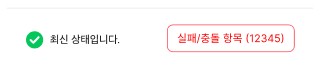
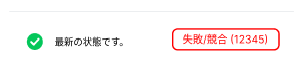
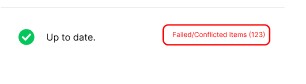
Once synchronization is complete, sync failures and conflicts are displayed in a tray window.
If you click the Failed/Conflict Items button, you can check the details in the Sync Failures/Conflicts list.
| Tray window > Display contents by sync status | Description |
 |
|
| Tray window > Display contents by sync status | Description |
 |
|
| Tray window > Display contents by sync status | Description |
 |
|
Sync failure
A failed sync indicates that the file or folder could not be synchronized due to an error.
You can check the details of what kind of error caused the failure by clicking the 'Failed/Conflicted Items' button in the sync feedback.
Check the reason for the sync failure by following the steps below.
Windows
- Click the 'Failed/Conflicted Items' button in the sync feedback.
- Click the Sync Failures tab in the Sync Failures/Conflicts list pop-up.
- Check the file name or folder name of the items that failed to sync and the reason why they failed.
If there is a 'View Help' option, you can find help for the cause in the Help Center.
Sync conflict
This is when the synchronized folder/file is edited separately on the PC and server, so that the file data or file information is different even though the name is the same.
In this case, the files are saved in the WORKS Drive folder and My Computer in the following formats, respectively.
If an editing conflict occurs, files created in that format can be found on My Computer and the WORKS Drive.
Windows
- Click the 'Failed/Conflicted Items' button in the sync feedback.
- Click the Edit Conflicts tab in the Sync Failures/Conflicts list pop-up.
- Check the file name or folder name of the item with the edit conflict and the name of the file saved on the server or locally.
The conflicting files are stored locally and on the server in the following file formats:
- Local files: Conflict_Local_File.ext
- Server files: Conflict_Serverl_File.ext