Display when sync failures and conflicts occur
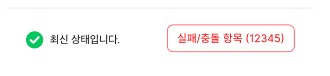
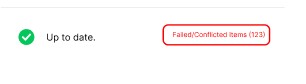
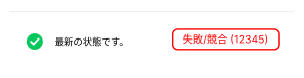
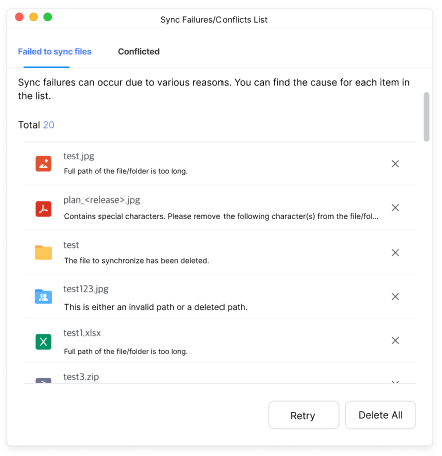
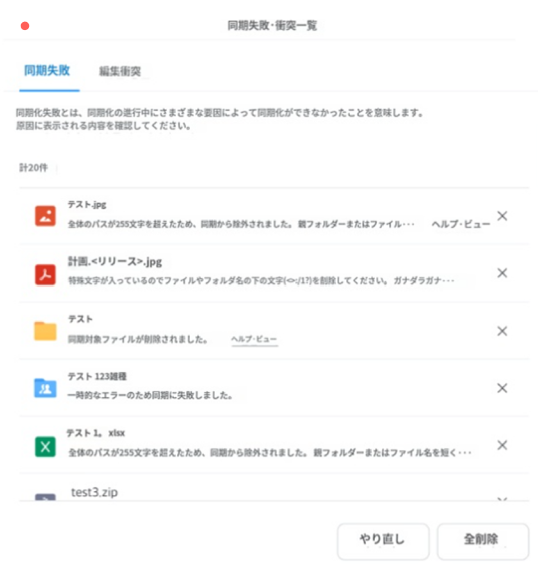
Once synchronization is complete, any sync failures and conflicts will be displayed in the tray window.
Clicking on the failure/conflict item will allow you to view detailed information in the Sync Failure/Conflict list.
| Tray window > Display content by sync status | Description |
 |
|
| Tray window > Display content by sync status | Description |
 |
|
| Tray window > Display content by sync status | Description |
 |
|
Sync failure
| Screen | Description |
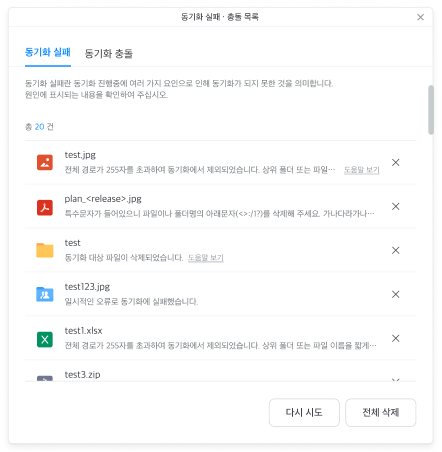 |
This is when the synchronized folder/file is edited separately on the PC and server, so that the file data or file information is different even though the name is the same.
In this case, the files are saved in the WORKS Drive folder and My Computer in the following formats, respectively. If an editing conflict occurs, files created in that format can be found on My Computer and WORKS Drive.
The conflicting files are stored locally and on the server in the following file formats:
|
| Screen | Description |
 |
This is when the synchronized folder/file is edited separately on the PC and server, so that the file data or file information is different even though the name is the same.
In this case, the files are saved in the WORKS Drive folder and My Computer in the following formats, respectively. If an editing conflict occurs, files created in that format can be found on My Computer and WORKS Drive.
The conflicting files are stored locally and on the server in the following file formats:
|
| Screen | Description |
 |
This is when the synchronized folder/file is edited separately on the PC and server, so that the file data or file information is different even though the name is the same.
In this case, the files are saved in the WORKS Drive folder and My Computer in the following formats, respectively. If an editing conflict occurs, files created in that format can be found on My Computer and WORKS Drive.
The conflicting files are stored locally and on the server in the following file formats:
|
Sync conflict
| Screen | Description |
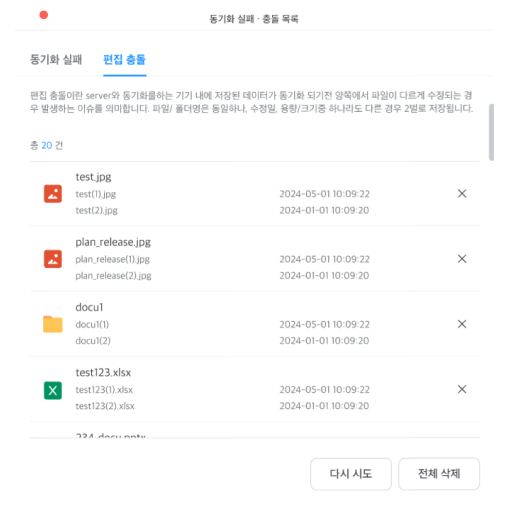 |
This is when the synchronized folder/file is edited separately on the PC and server, so that the file data or file information is different even though the name is the same.
In this case, the files are saved in the WORKS Drive folder and My Computer in the following formats, respectively. If an editing conflict occurs, files created in that format can be found on My Computer and WORKS Drive.
The conflicting files are stored locally and on the server in the following file formats:
|
| Screen | Description |
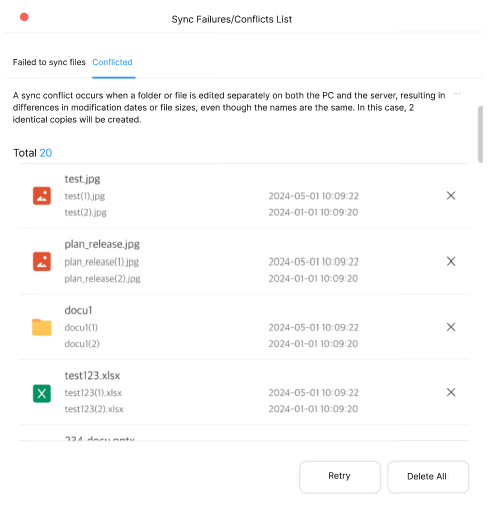 |
This is when the synchronized folder/file is edited separately on the PC and server, so that the file data or file information is different even though the name is the same.
In this case, the files are saved in the WORKS Drive folder and My Computer in the following formats, respectively. If an editing conflict occurs, files created in that format can be found on My Computer and WORKS Drive.
The conflicting files are stored locally and on the server in the following file formats:
|
| Screen | Description |
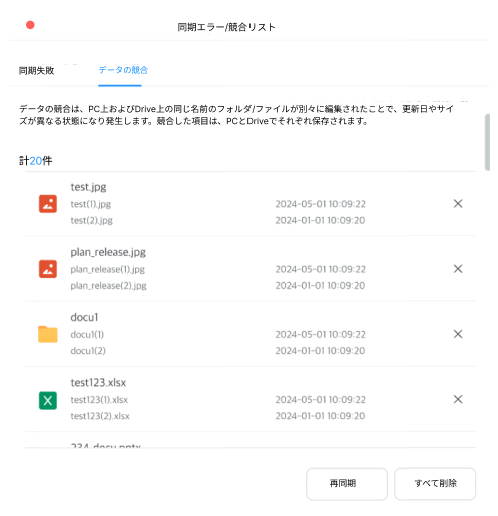 |
This is when the synchronized folder/file is edited separately on the PC and server, so that the file data or file information is different even though the name is the same.
In this case, the files are saved in the WORKS Drive folder and My Computer in the following formats, respectively. If an editing conflict occurs, files created in that format can be found on My Computer and WORKS Drive.
The conflicting files are stored locally and on the server in the following file formats:
|